Secure guest link
A movement can generate a high-entropy tracking link that opens without exposing internal Jeevi records.
What the guest sees
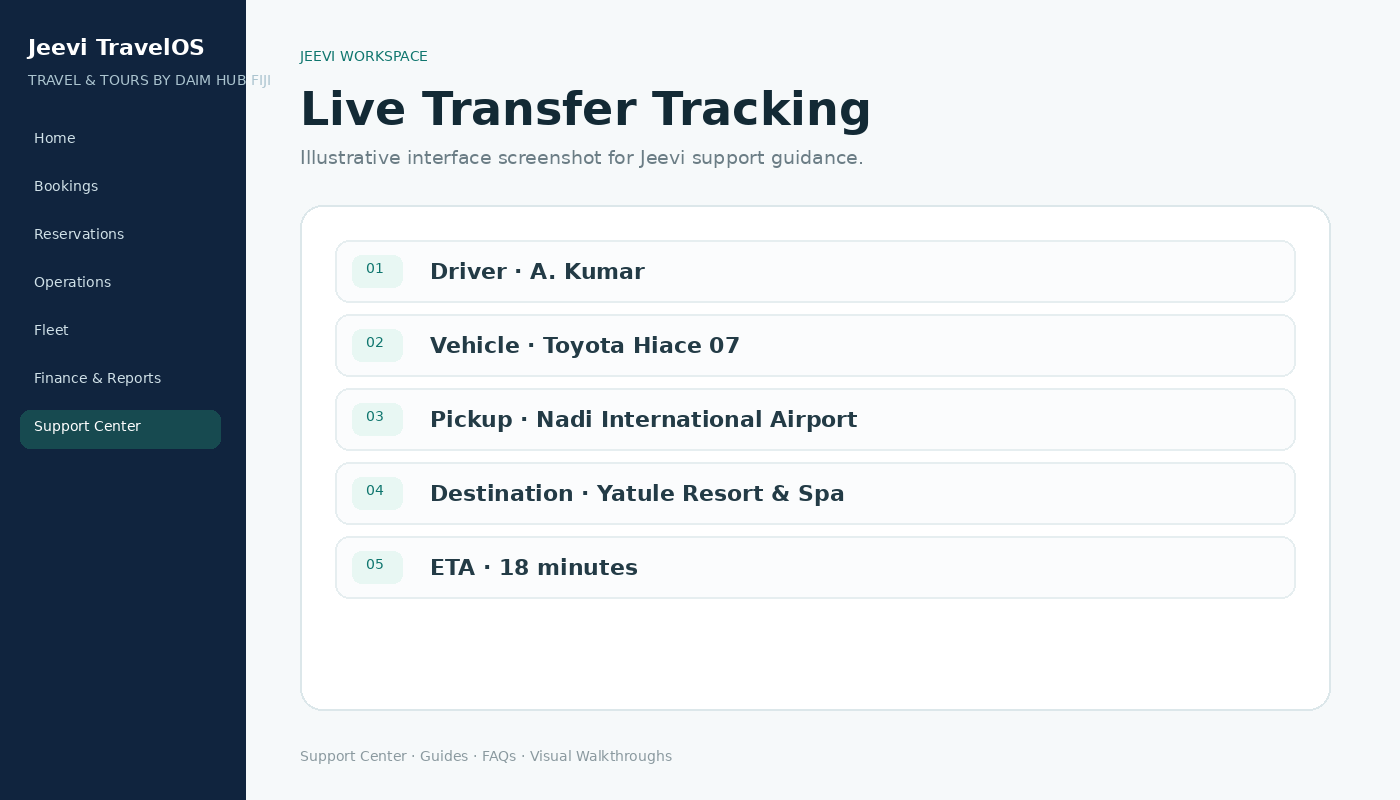
The guest view can show assigned vehicle, registration, driver first name, pickup, destination, movement status, map position and ETA.
Privacy by design
Internal notes, commercial data and unrelated customer information are not shown in the public tracking view.
Step by step
Create or open the movement.
Assign a driver and vehicle.
Share the guest tracking link.
Driver starts the shift.
Guest refreshes or watches the live movement status.